 How to use Delta.AR
How to use Delta.AR?
Delta.AR is an augmented reality (AR) technology based 3D genome visualization platform for the integration of chromatin physical structure with multiple '-omics' data.
1. Load a Delta.AR session
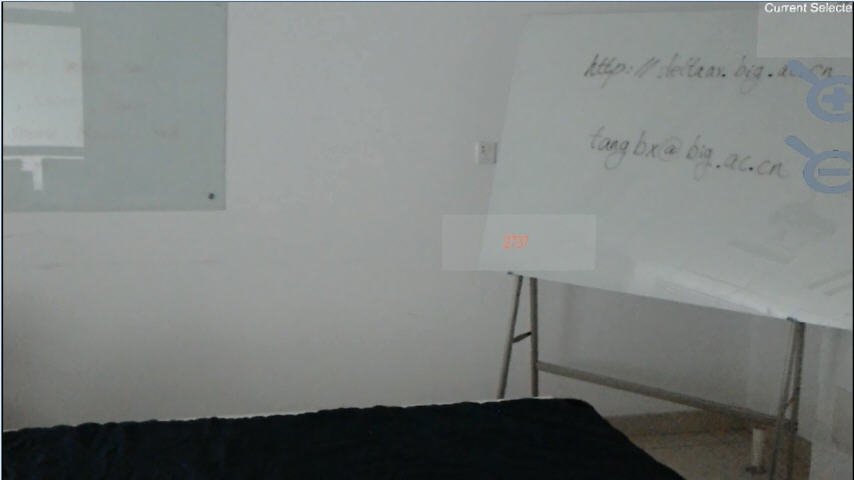
Delta.AR ueses Microsoft HoloLens to show a 3D physical model of genome into the user¡¯s view field. When the user launches the Delta.AR app from HoloLens, a session ID will be assigned follows.
Users can click the "Start Here" button from home webpage or click "AR Configure" menu to open the session configure page and input the previous Hololens id , such as 2737. Then click Next, users can load the Physical View Configure webpage
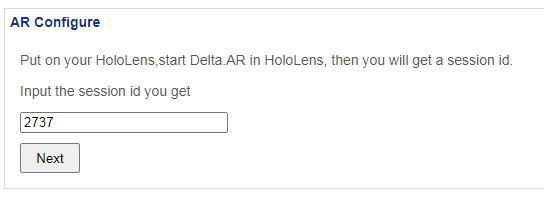
Users can click the "Start Here" button from home webpage or click "AR Configure" menu to open the session configure page and input the previous Hololens id , such as 2737. Then click Next, users can load the Physical View Configure webpage
2. Load 3D model and annotated tracks
2.1 Load 3D model
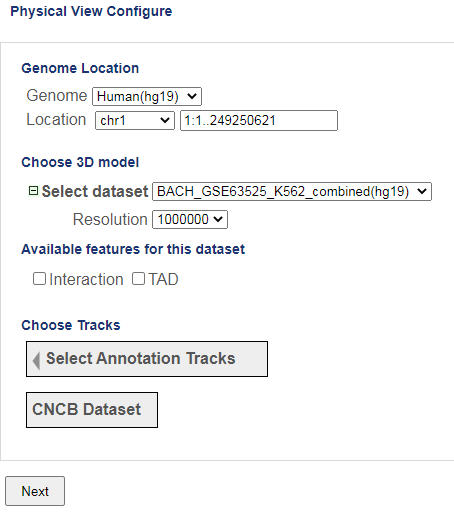
Delta.AR provides several precomputated 3D physical model for human hg18/hg19. Users can choose any 3D model, configure genome location, resolution size to see the physical model of given range.
2.2 Load annotated tracks and CNCB tracks
For some 3D physical model, there are several associated available features such as TAD, Interaction. To activate these features, users need to check or uncheck them. Users also can open a track selected panal which include ENCODE histone mark annotated tracks , HiC features, Ensembl gene when click "Select Annotation Tracks"
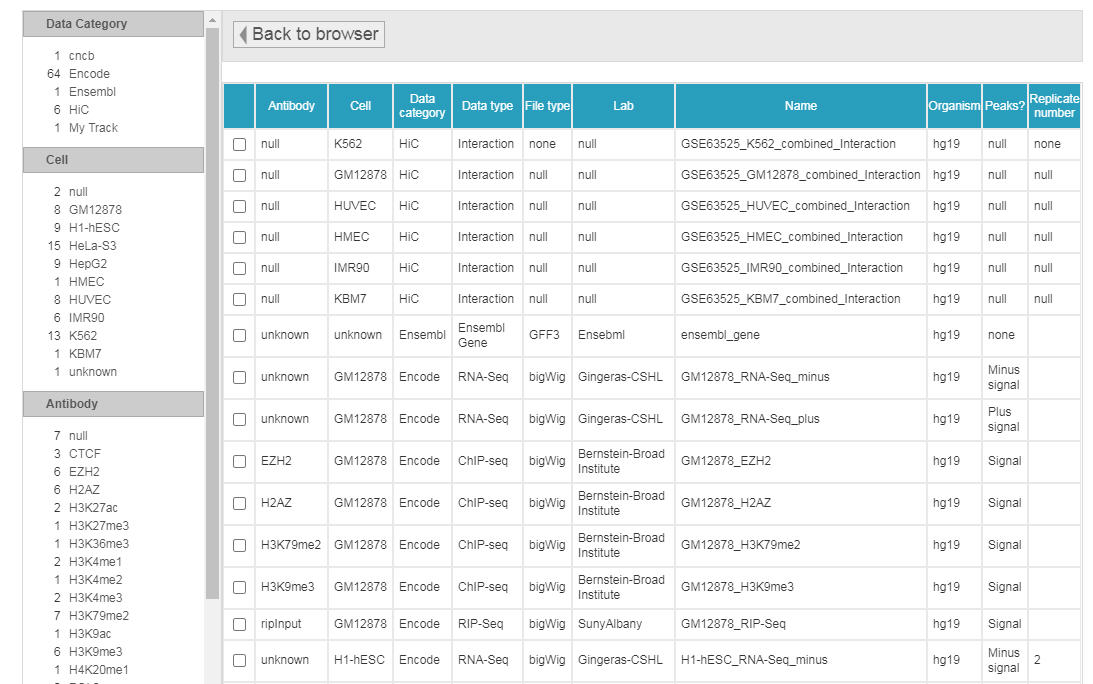
Delta.AR provide another track panel which include CNCB data set for users to select, when users click "CNCB Dataset". In future, we will load more CNCB data tracks here.

When user finish choose tracks and click "Next" , a genome view panel shown as follows.
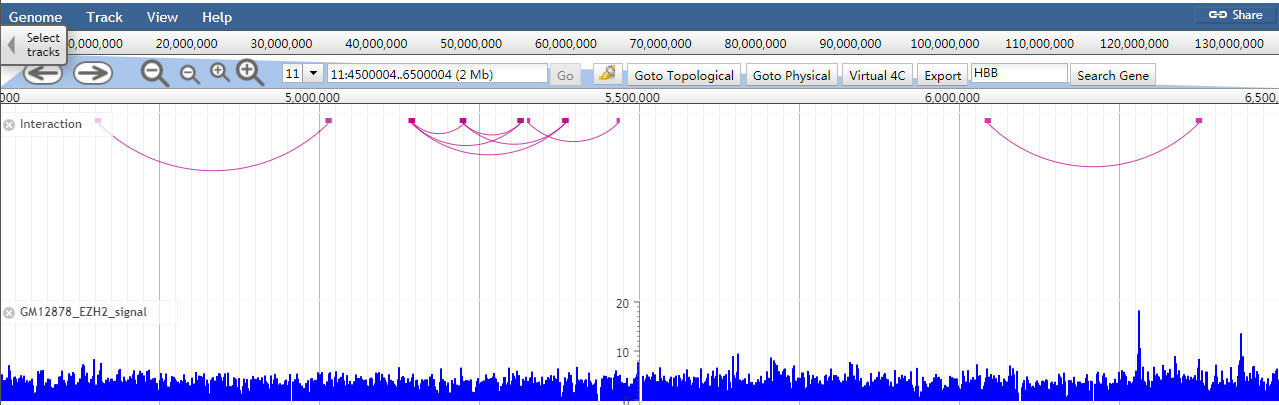
When user finish choose tracks and click "Next" , a genome view panel shown as follows.
3. Explore data in Genome View
3.1 Load or unload a track to show in HoloLens
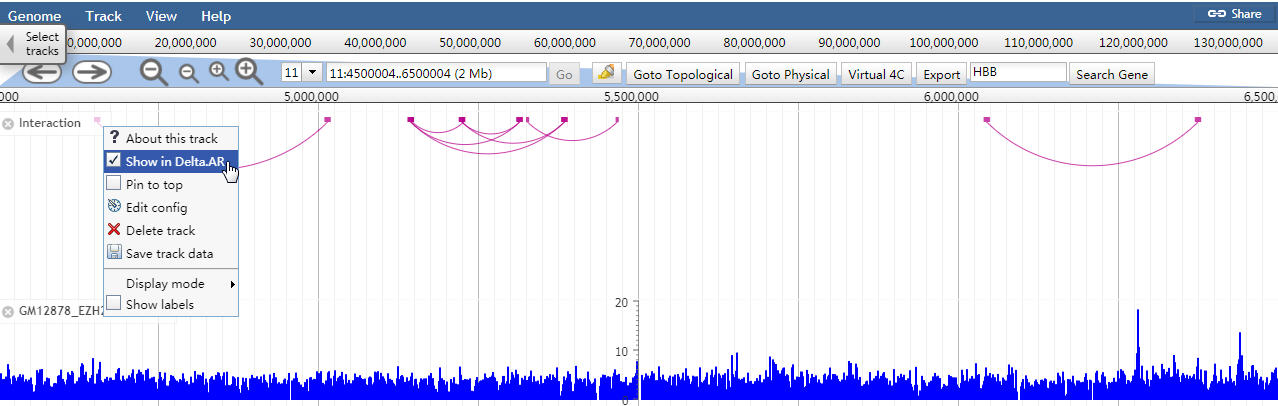
When users want to load a track to show in HoloLens, they can move mouse on to the given track name, then a down arrow will be shown. Click the arrow, a dialog will be shown with serveral operated menus. Check the menu "Show in Delta.AR" as follows, the track will be shown as soon as possible in HoloLens view. If users want to delete a track show in HoloLens view, they can uncheck the "Show in Delta.AR".
3.2 Add custom tracks
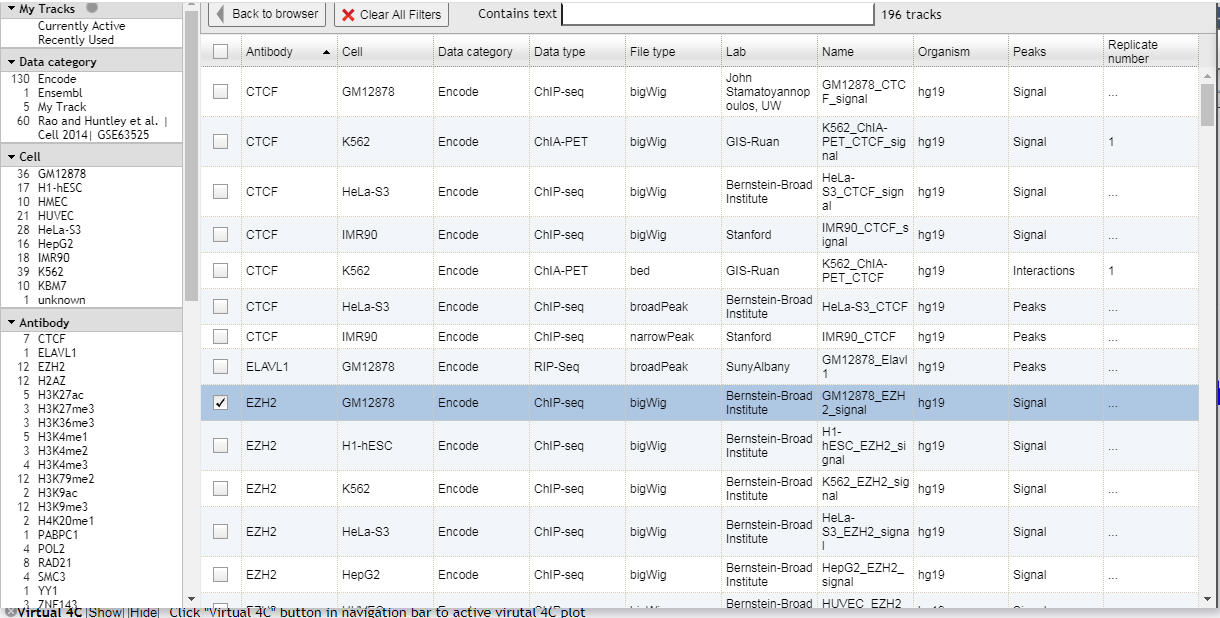
When users want to add more tracks in Genome View or HoloLens, they can click "select tracks" in Genome View, then a track panel shows as follows.
3.3 Jump to Topological View and Physical View
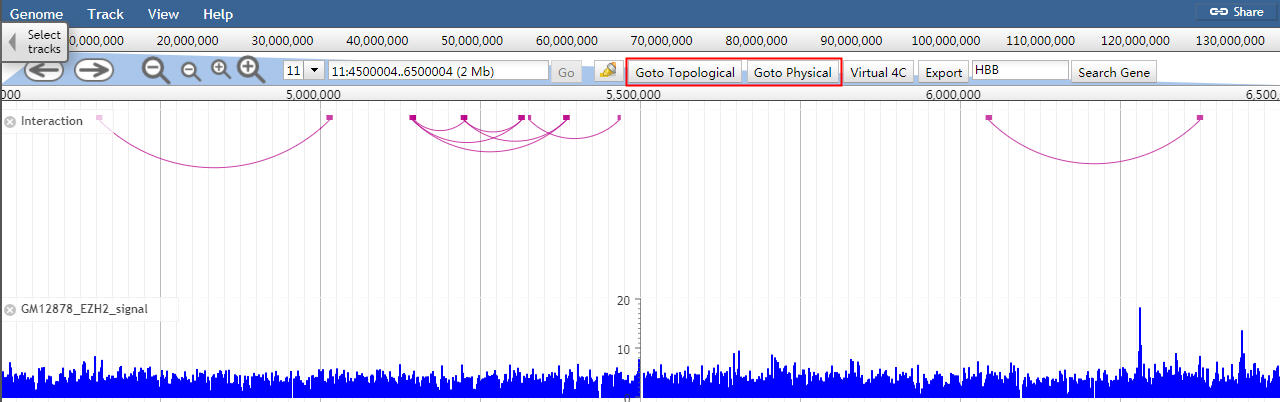
Delta.AR provides topological view and physical view for users to visualize data. Click the "Goto Topological" jump to topological view or click "Goto Physical" jump to physical view .
A topological view panel as follows. Users can zoom in or zoom out, configure viewed genome region, add or remove tracks.
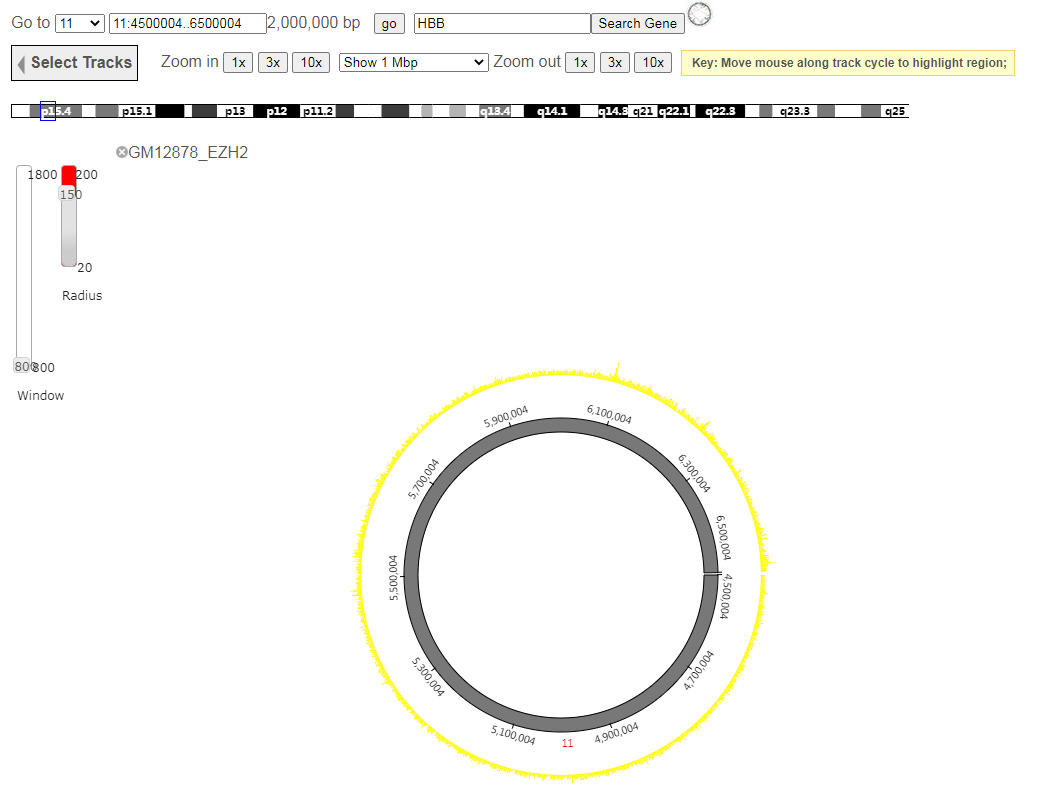
A physical view panel as follows. Users can zoom in or zoom out, configure viewed genome region, add or remove tracks.
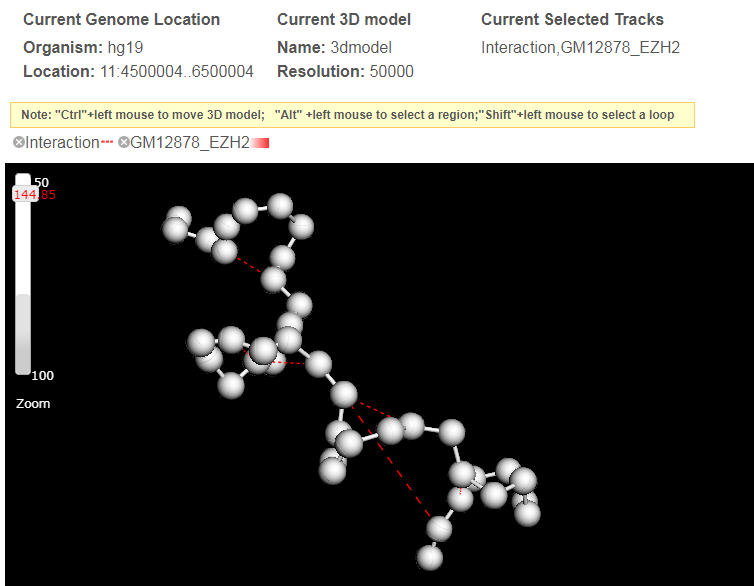
A topological view panel as follows. Users can zoom in or zoom out, configure viewed genome region, add or remove tracks.
A physical view panel as follows. Users can zoom in or zoom out, configure viewed genome region, add or remove tracks.
4. Share data
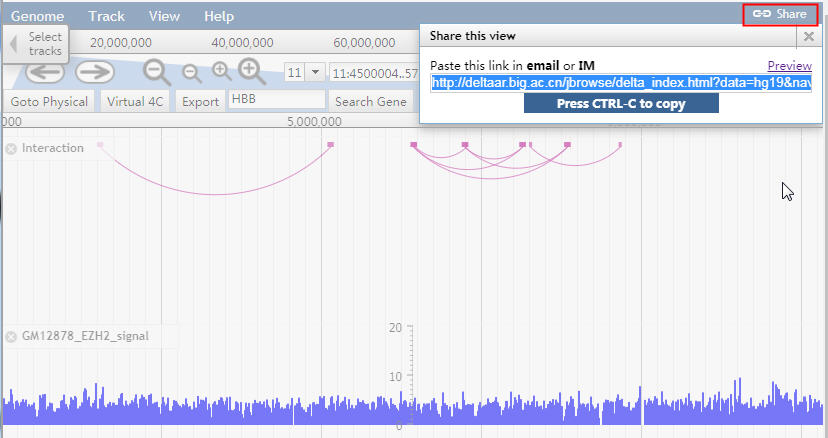
Users can share genome view to other people by clicking "Share" button. A dialog will be shown as follows. Users can use "CTRL C" button to copy the link and share url to other people. Keep in mind that if other people check or uncheck the track "Show in Delta.AR", HoloLens view will be changed since you are in the same session.
5. Upload own data
Users can upload their own data by clicking Track -> Open track file or URL as the following picture.
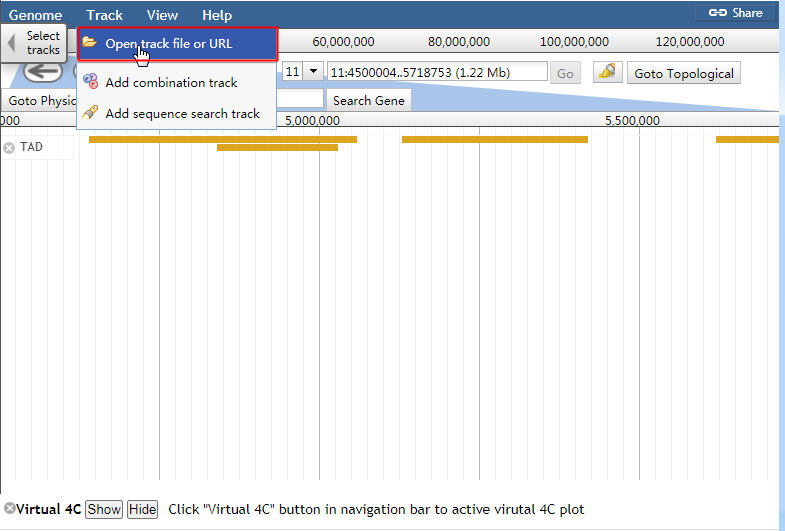
Then a dialog will be shown. In this dialog, users can upload their own file.
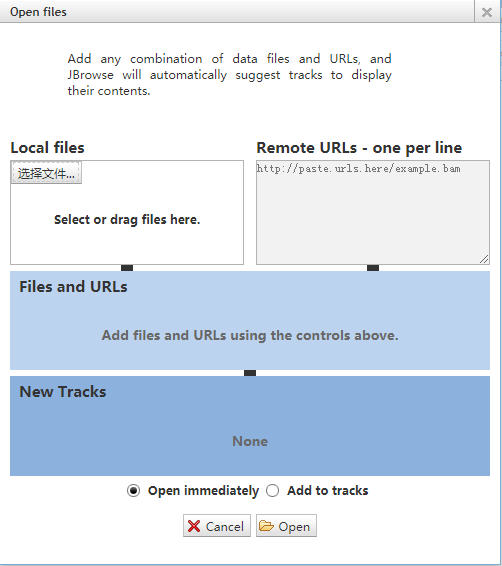
When the file load successfully, users can configure the file format and the visualized type. A custom suggestions as follows:
For CanvasFeatures, an arc connection, gene, transcript;
For HTMLFeatures, TAD ,gene;
For WiggleXYPlot, histone mark quality data
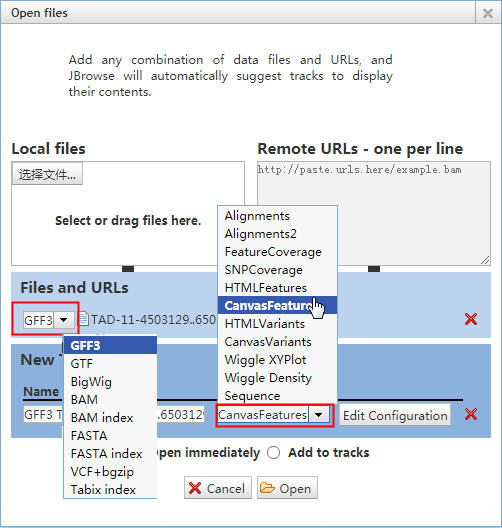
Then a dialog will be shown. In this dialog, users can upload their own file.
When the file load successfully, users can configure the file format and the visualized type. A custom suggestions as follows:
For CanvasFeatures, an arc connection, gene, transcript;
For HTMLFeatures, TAD ,gene;
For WiggleXYPlot, histone mark quality data
6. Video tutorial
Delta.AR provides a video tutorial for users to start at beginning. Click here.
7. Delta.AR github
Delta.AR provides a github project for the whole web project. The url as follows
https://github.com/zhangzhwlab/Delta.AR
https://github.com/zhangzhwlab/Delta.AR
8. A protocal between HoloLens view and 2D device
The whole Delta.AR system is designed as M(Model)-V(View)-C(Control) style, a custom structure of J2EE that can easily be maintained and extended. Two events are defined in HoloLens that support selecting a ball or highlighting an interaction loop. The events in HoloLens will trigger the active data synchronization between HoloLens and web server, in turn signaling the portable device to update the genome browser. The events in genome browser will trigger active data synchronization between the portable device and web server, in turn signaling HoloLens to update the hologram. All epigenetic annotation data and 3D physical models are maintained in a MySQL database. The installation package can be downloaded from http://deltaar.big.ac.cn/deltaar/pages/download/download.jsp. A video tutorial is available for the installation at this page.
A simple application layer protocol (AALP) for communication among HoloLens, portable device and data source. AALP is an HTTP-based interface for data exchange. The link from HoloLens and portable device to data source is defined as the uplink, while the reverse link is defined as the downlink. The connection is established through the web server for http://deltaar.big.ac.cn. Two JSON files are found on the web server. One maintains the parameters of HoloLens (JSON.Hololens), and the other maintains the genome browser parameters in the portable device (JSON.Portable). JSON.Hololens and JSON.Portable are monitored by the portable device and HoloLens, respectively. When the Delta.AR app is launched in HoloLens, a session ID is assigned. By inputting this session ID to the server through the webpage, a communication session between the HoloLens and the webserver is established, and any further data exchanges will be conducted by this session ID.
1. Uplink from HoloLens/portable device to the data source. A HoloLens event, e.g., selecting an interaction in HoloLens, triggers an uplink communication. The parameters of this event are saved to JSON.Hololens.
2. Downlink from data source to the portable device. The genome browser in the portable device monitors the updating of JSON.Hololens and refreshes the genome view in the browser accordingly.
3. Downlink form data source to HoloLens. HoloLens monitors the updating of JSON.Portable and updates the current hologram accordingly. Parameters in JSON.Hololens.
Example:
[{"annotation":{"currentTrack":"Interaction,TAD,LCR_Gene,K562_EZH2","event":""},"hololens":{"hololensid":"0045"},"model":{"bin":"50000","chrom":"11","end":"6500000","name":"3dmodel","organism":"hg19","start":"4500000"},"portal":{"jobId":"hg19"}}], where
Annotation: the annotated tracks
CurrentTrack: currently viewed annotated tracks
Event: name of the event
HoloLens: the identification of HoloLens
Hololensid: the session ID, as shown in HoloLens
Model: physical 3D model information
Bin: bin size for 3D model
Chrom: chromosome of genomic region
End: end position of genomic region
Name: name of 3D model
Organism: name of organism
Start: start position of genomic region
Portal: identification of genome for web portal
jobId: genome identification
4. Parameters in JSON.Portable.
Example:
[{"annotation":{"currentTrack":"Interaction,TAD,LCR_Gene_signal,K562_EZH2_signal","event":"select_region"},"hololens":{"hololensid":"0045"},"model":{"binStart":"90","loc":"11:5900000..5950000","organism":"hg19","resolution":"50000"}}], where
Annotation: the annotated track
CurrentTrack: currently viewed annotated track
Event: name of the event in HoloLens
HoloLens: identification of HoloLens
Hololensid: session ID, as shown in HoloLens
Model: physical 3D model information
binStart: genomic start position mapped in 3D model
Loc: genome coordinate
Organism: name of organism
Resolution: binsize of 3D model
A simple application layer protocol (AALP) for communication among HoloLens, portable device and data source. AALP is an HTTP-based interface for data exchange. The link from HoloLens and portable device to data source is defined as the uplink, while the reverse link is defined as the downlink. The connection is established through the web server for http://deltaar.big.ac.cn. Two JSON files are found on the web server. One maintains the parameters of HoloLens (JSON.Hololens), and the other maintains the genome browser parameters in the portable device (JSON.Portable). JSON.Hololens and JSON.Portable are monitored by the portable device and HoloLens, respectively. When the Delta.AR app is launched in HoloLens, a session ID is assigned. By inputting this session ID to the server through the webpage, a communication session between the HoloLens and the webserver is established, and any further data exchanges will be conducted by this session ID.
1. Uplink from HoloLens/portable device to the data source. A HoloLens event, e.g., selecting an interaction in HoloLens, triggers an uplink communication. The parameters of this event are saved to JSON.Hololens.
2. Downlink from data source to the portable device. The genome browser in the portable device monitors the updating of JSON.Hololens and refreshes the genome view in the browser accordingly.
3. Downlink form data source to HoloLens. HoloLens monitors the updating of JSON.Portable and updates the current hologram accordingly. Parameters in JSON.Hololens.
Example:
[{"annotation":{"currentTrack":"Interaction,TAD,LCR_Gene,K562_EZH2","event":""},"hololens":{"hololensid":"0045"},"model":{"bin":"50000","chrom":"11","end":"6500000","name":"3dmodel","organism":"hg19","start":"4500000"},"portal":{"jobId":"hg19"}}], where
Annotation: the annotated tracks
CurrentTrack: currently viewed annotated tracks
Event: name of the event
HoloLens: the identification of HoloLens
Hololensid: the session ID, as shown in HoloLens
Model: physical 3D model information
Bin: bin size for 3D model
Chrom: chromosome of genomic region
End: end position of genomic region
Name: name of 3D model
Organism: name of organism
Start: start position of genomic region
Portal: identification of genome for web portal
jobId: genome identification
4. Parameters in JSON.Portable.
Example:
[{"annotation":{"currentTrack":"Interaction,TAD,LCR_Gene_signal,K562_EZH2_signal","event":"select_region"},"hololens":{"hololensid":"0045"},"model":{"binStart":"90","loc":"11:5900000..5950000","organism":"hg19","resolution":"50000"}}], where
Annotation: the annotated track
CurrentTrack: currently viewed annotated track
Event: name of the event in HoloLens
HoloLens: identification of HoloLens
Hololensid: session ID, as shown in HoloLens
Model: physical 3D model information
binStart: genomic start position mapped in 3D model
Loc: genome coordinate
Organism: name of organism
Resolution: binsize of 3D model